Set up your 3D configurator by talking.
Bring a 3D file, or let Vera make one. Describe the product to the Setup Assistant. It builds and checks; you approve. Only that click publishes.
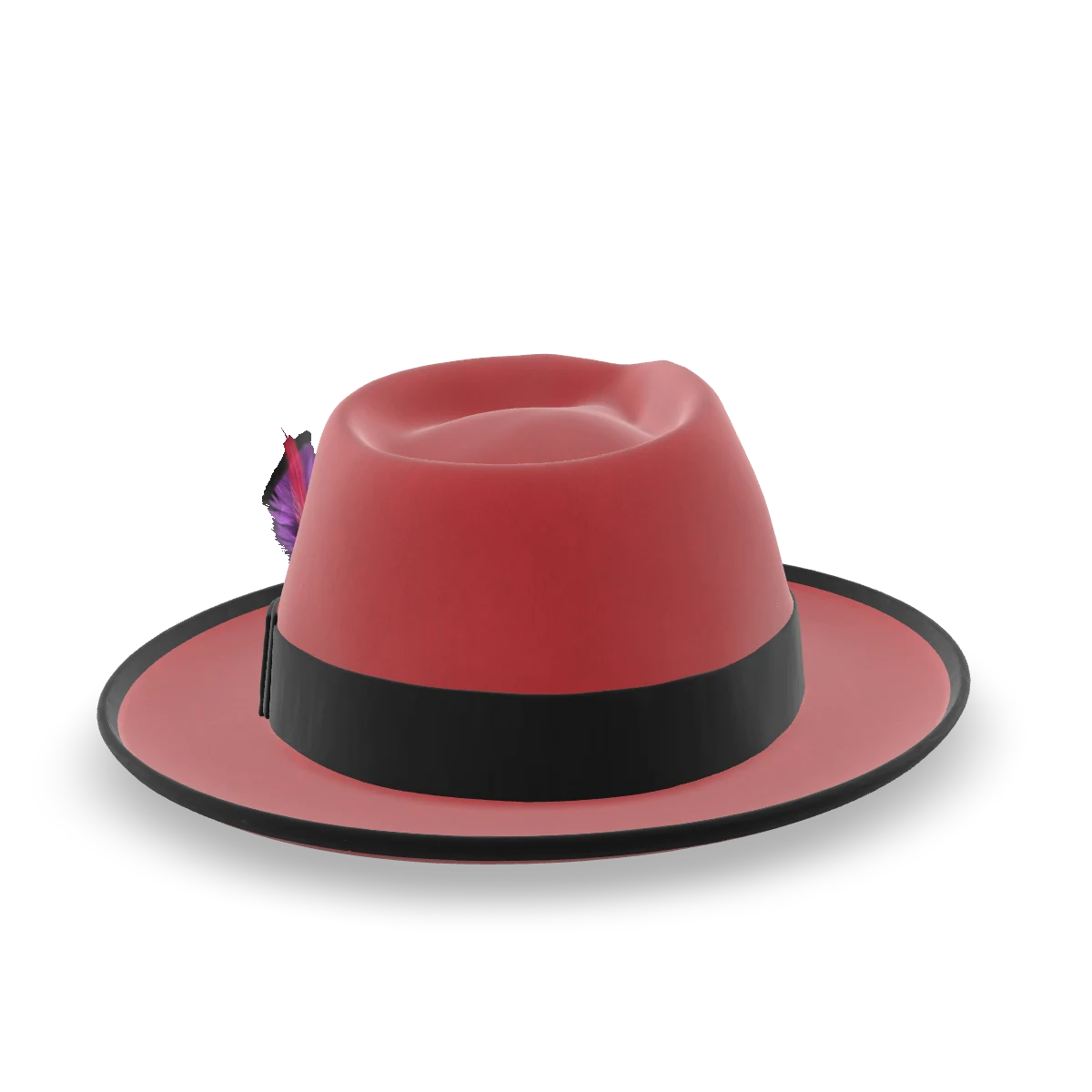
The same 3D file, before and after the assistant's setup. Kwal-ity Hats, our demo brand.
Bring your file, or let Vera make one.
Orbit3D reads GLB files. If you have one, drop it in. It goes straight into your store's own Files, where you can see it and keep it.
If your product lives in photos and a flat file from the printer, that is Vera's job. Vera is MK-Way's AI 3D designer. She takes what you have and returns a 3D model with every part separate and named, cut the way your shoppers will choose: the crown, the ribbon, the feather. You do not need to know what a mesh is.
Photos in. A configurable model out.
Front, back, left, right. Your option list becomes the parts. Nothing to install, nothing to learn.
Talk to the assistant, in your own language.
Hold the conversation in the language you think in. The app screens, the help pages and the text your shoppers see are in English.
Describe your product the way you would to a new hire. What shoppers can choose. What each choice costs. Which part of the product it changes.
What it reads
- Your 3D file: the parts in it, their names, and the materials on them.
- Your words: the options, the prices, the rules.
What it builds
- Option groups and their values, each with a price.
- The link from each option to the part of the product it changes, so a colour choice recolours the right part.
- Sizes, engraving, artwork upload and show-or-hide rules, where your plan includes them.
What it checks
- Leftover parts: pieces in the file that no option uses.
- Placeholder materials: the default grey nobody meant to ship.
- Naming problems: parts named in a way that will not work as options.
It tells you what it found and where. You fix the file, or you ask us to.
Approve and go live.
The assistant shows you what it built: a preview you can turn and try, exactly as a shopper will. When it is right, click approve.
That click, and nothing else, publishes. Saying yes in the chat does not publish. Telling the assistant it looks great does not publish. Approve does.
It is added to your product page as a theme block, with no code. On the Free plan you can build and preview; publishing needs a paid plan, and every paid plan includes a 7-day trial.
- "Yes, that looks right." Does not publish.
- "Great, go ahead." Does not publish.
- Approve and publishPublishes.
What reaches the order.
A configured product reaches the order as one line. Every choice the shopper made is listed on it in plain words, part by part, so whoever makes it can work from the order.
The price on that line was worked out on our server and signed when the shopper added it to the cart. Checkout verified the signature before the order existed. A second check refuses any line with a price your store did not sign.
Over time, the options report shows you which choices shoppers actually order, including the values nobody ever picks. Cut them, or price them differently. The report is not on the Free plan.
Kwal-ity Hat
- Felt
- Signature red
- Ribbon
- Black
- Size
- Medium 2 (57 cm)
- Feather
- Yes, +$9.99
- Engraving
- EST. 2019
$221.99
Qty 1
One product right? Copy it.
When the first configurator is right, copy it onto the next product. Change what differs: the parts, the prices, the sizes. Approve that one too. Every paid plan covers unlimited products, so the copy button never hits a cap.
Asked before the first product.
What 3D files do you accept?
I don't have a 3D file.
Can I talk to the assistant in French? Or Spanish, or Portuguese?
Does saying yes in the chat publish?
Can I publish on the Free plan?
Do I need a developer?
Can you import my Zakeke setup?
I changed a price. What happens to carts that are already open?
Will it slow my product page?
What if my file has problems?
Start with what you have.
A GLB file, or a folder of photos. Either way, the next step is a conversation.
Free plan to build and preview. Paid plans include a 7-day trial. Or try it in 3D first on the demo page.